
SkillQ
1. What is SkillQ?
SkillQ is a simple app that helps you, as a tutor, build a personal bank of practice questions and turn them into assignments for your students.
With SkillQ you can:
- Create Multiple Choice Questions (MCQs) with four options and one correct answer.
- Create Multiple-Step Questions, where a student works through a problem one step at a time (each step is its own multiple-choice question).
- Organise everything by Board, Class, Subject and Chapter, so your questions are always easy to find.
- Group your questions into Assignments and send an assignment to a student using their email address.
2. Signing in
When you open SkillQ, you will see the sign-in screen.

- Tap the “Sign in with Google” button.
- Choose your Google account (or enter your Google email and password if asked).
- Once sign-in is complete, SkillQ will automatically take you to the Main Menu.
3. The Main Menu
The Main Menu is your home screen. From here you can reach every feature of SkillQ.
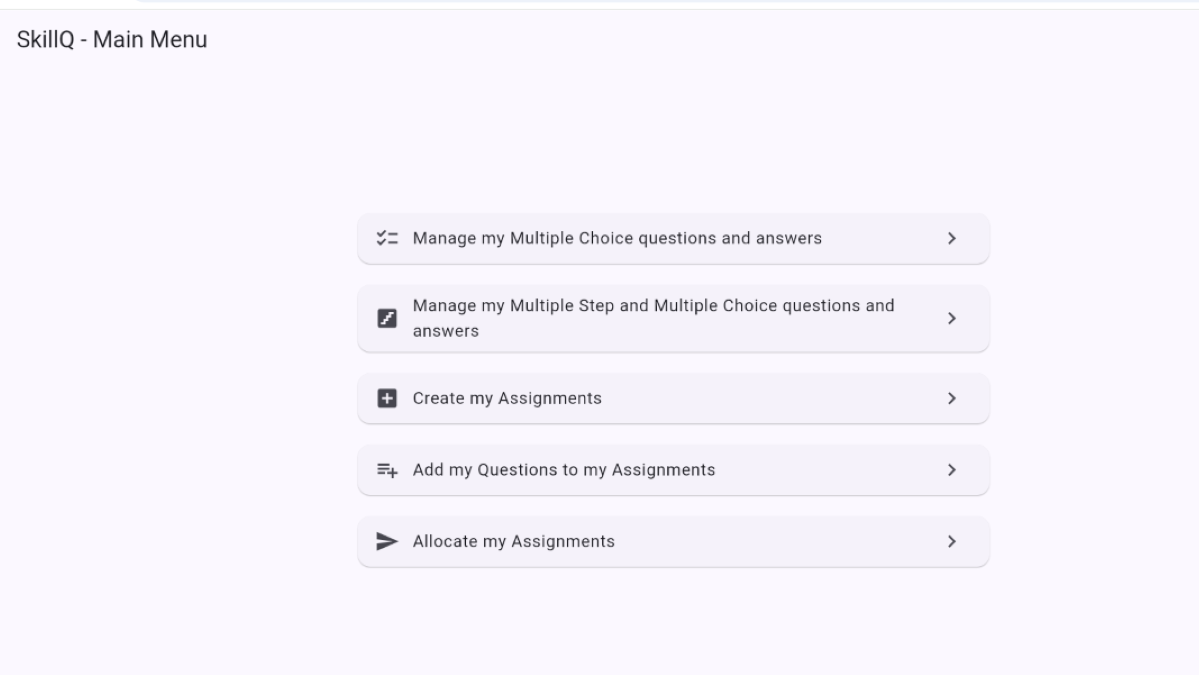
- Manage my Multiple Choice questions and answers – view, add, change or remove MCQs.
- Manage my Multiple Step and Multiple Choice questions and answers – view, add or remove multi-step questions.
- Create my Assignments – set up a new assignment.
- Add my Questions to my Assignments – choose which questions go into an assignment.
- Allocate my Assignments – send a finished assignment to a student.
Tap any option to open it. The back arrow at the top-left of a screen always takes you one step back. The logout icon (top-right, on the Main Menu) signs you out of SkillQ.
4. Managing Multiple Choice Questions
This section covers everything you can do with standard multiple-choice questions: viewing, adding, changing and deleting them.
4.1 Choosing a Board, Class, Subject and Chapter
Every question in SkillQ belongs to a specific Chapter, which sits under a Subject, a Class, and a Board. The first time you manage MCQs (or whenever you tap “Choose a different chapter”), SkillQ will ask you to pick these one at a time.
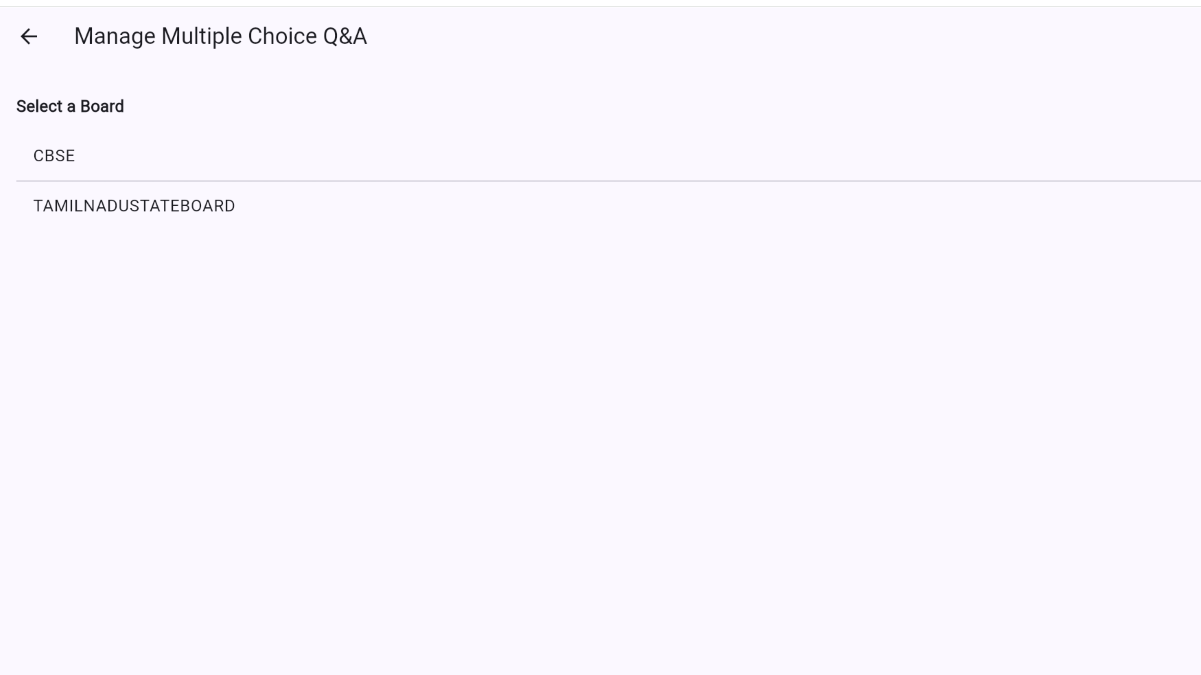
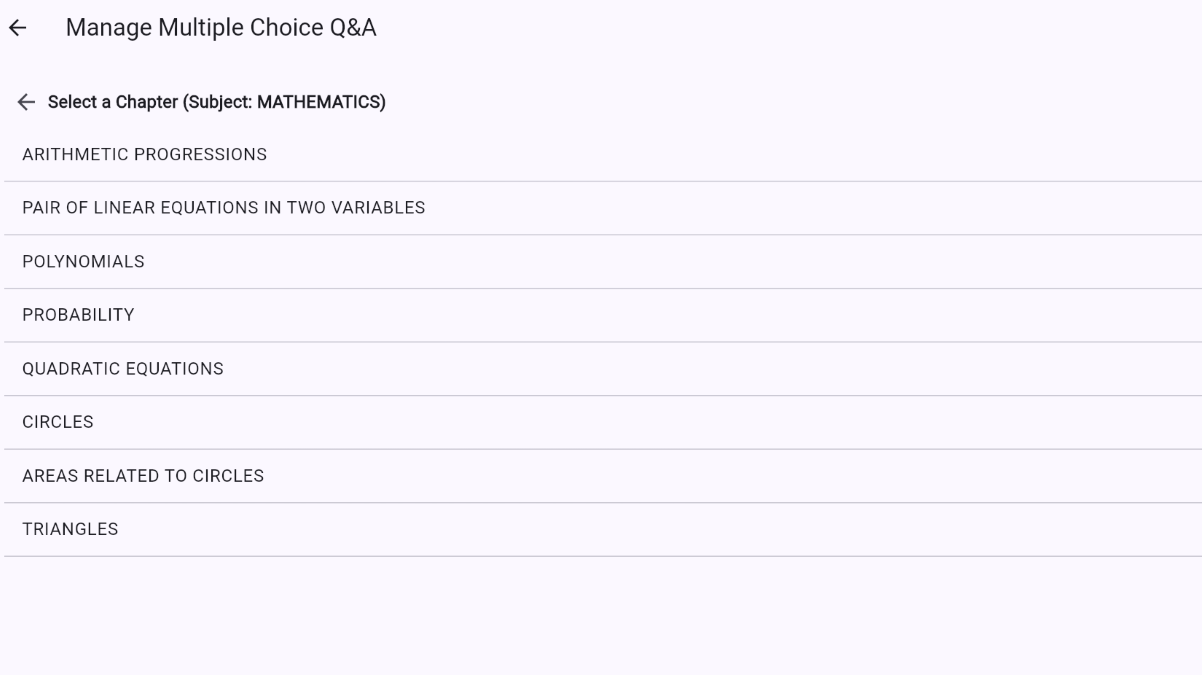
- Tap a Board (for example, CBSE).
- Tap a Class.
- Tap a Subject.
- Tap a Chapter. SkillQ will then show you the available actions for that chapter.
4.2 Choosing what to do
Once you've picked a chapter, SkillQ shows four actions you can take with your Multiple Choice questions in that chapter.
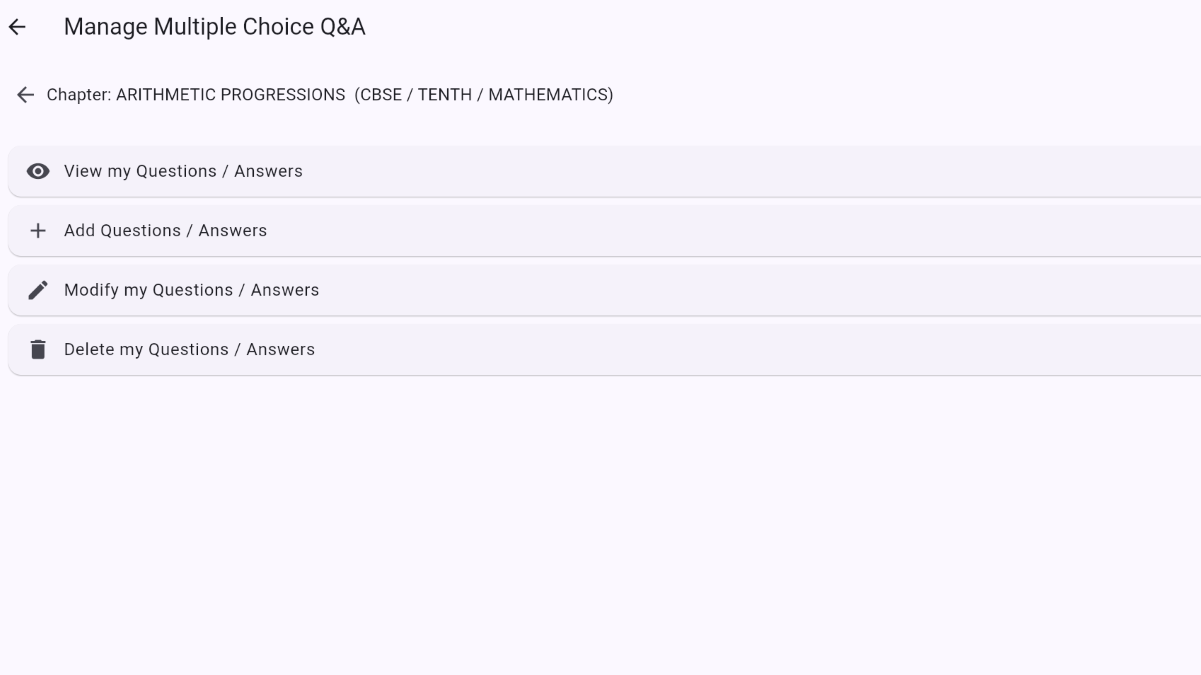
4.3 Adding a question
Tap “Add Questions / Answers” to open the Add screen.
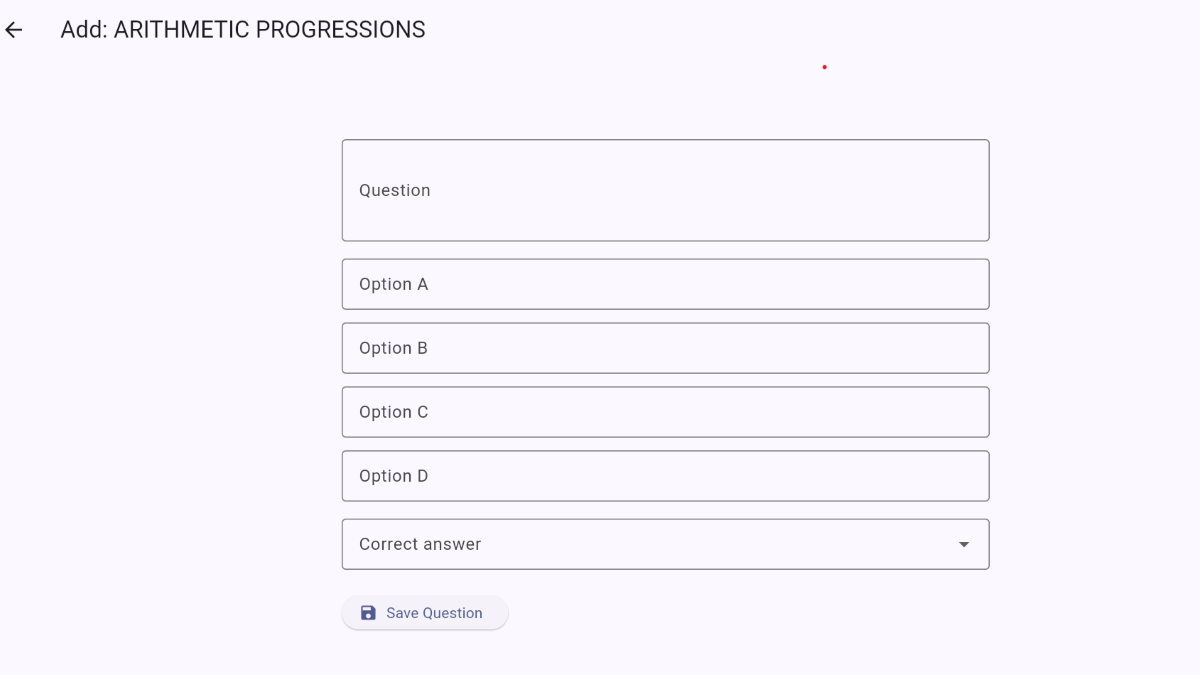
- Type your question into the “Question” box.
- Fill in Option A, B, C and D.
- Use the “Correct answer” dropdown to choose which option is correct.
- Tap “Save Question”. You'll see a confirmation message, and the form clears so you can add another question straight away.
4.4 Viewing your questions
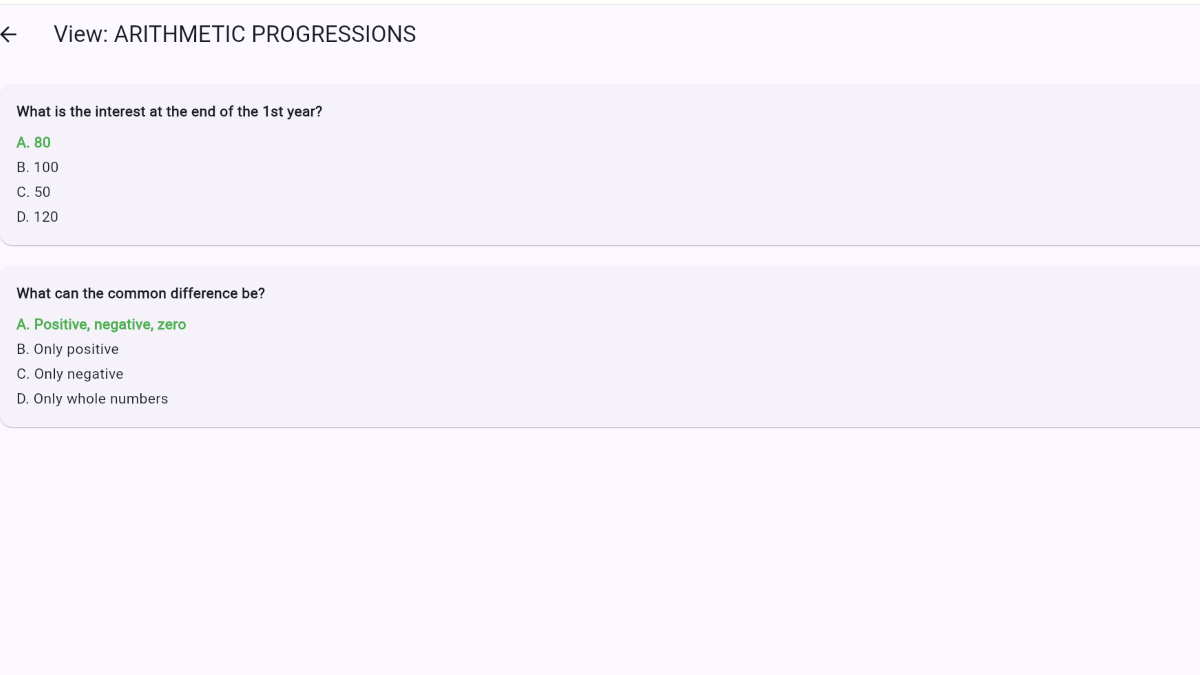
Tap “View my Questions / Answers” to see every question you've added for that chapter. The correct option is always shown in green with a check mark, so you can quickly review your work.
4.5 Modifying a question
Tap “Modify my Questions / Answers” to see a list of your questions. Tap any question in the list to open it in an editable form — the same layout as the Add screen, but pre-filled with the existing text. Make your changes and tap “Save Changes”.
4.6 Deleting questions
Tap “Delete my Questions / Answers” to see your questions with a checkbox beside each one.
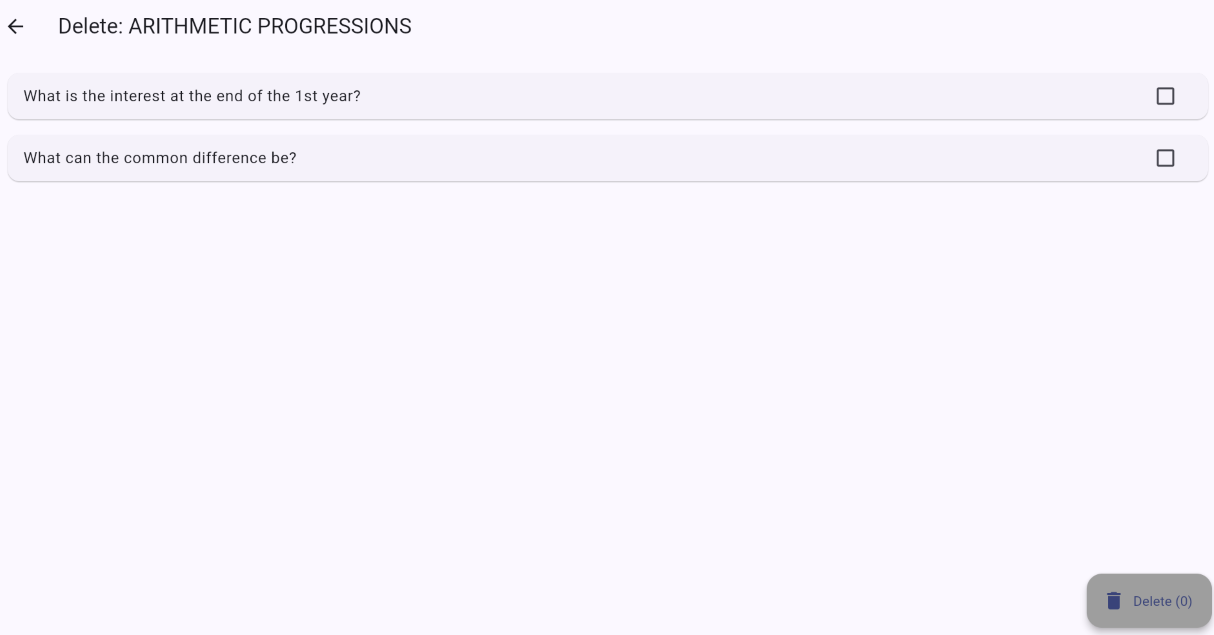
- Tap the checkbox next to each question you want to remove.
- Tap the red “Delete” button that appears at the bottom of the screen.
- Confirm the deletion in the pop-up that appears.
5. Managing Multiple-Step Questions
Multiple-step questions guide a student through a problem one step at a time — useful for derivations, working-out or multi-part problems. Each step is its own small multiple-choice question. Tap “Manage my Multiple Step and Multiple Choice questions and answers” from the Main Menu, then pick a Board, Class, Subject and Chapter exactly as in section 4.1.
You'll then see three actions: View, Add, and Delete. (There is no separate “Modify” option for multi-step questions — to make a change, delete the question and add it again.)
5.1 Adding a multi-step question
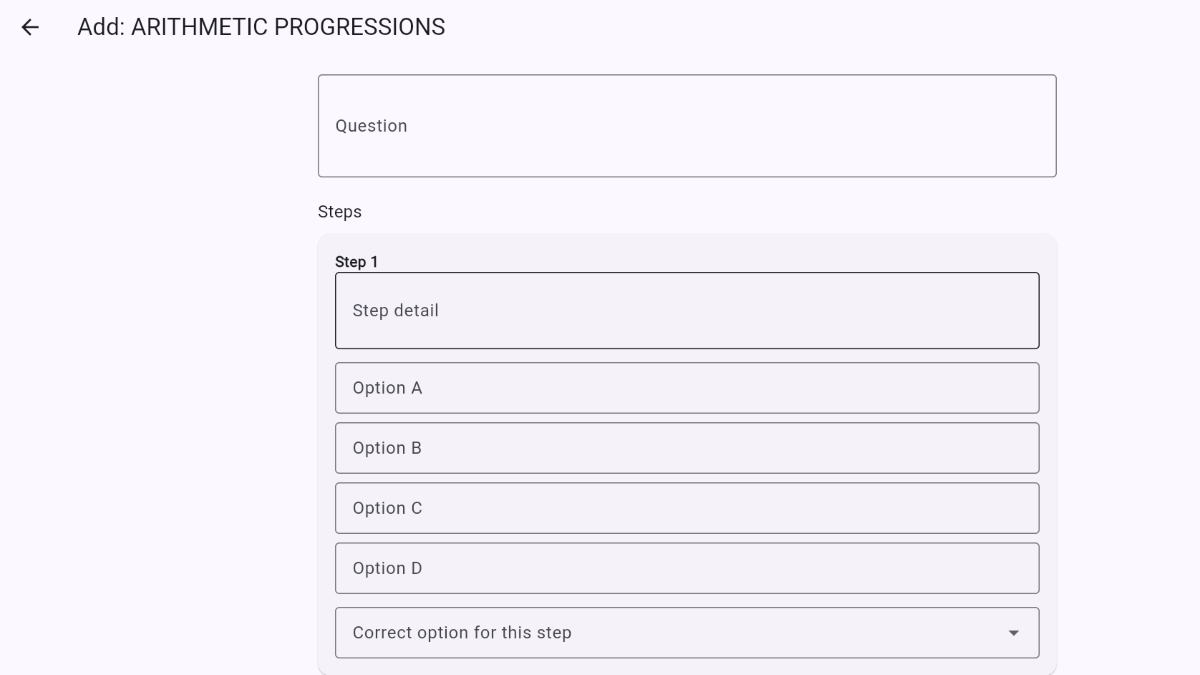
- Type the overall question at the top of the screen.
- For Step 1, type the step's detail, fill in its four options, and choose the correct option for that step.
- Tap “Add another step” to add as many further steps as you need. Each step can be removed individually using “Remove”.
- When all steps are complete, tap “Save Question”.
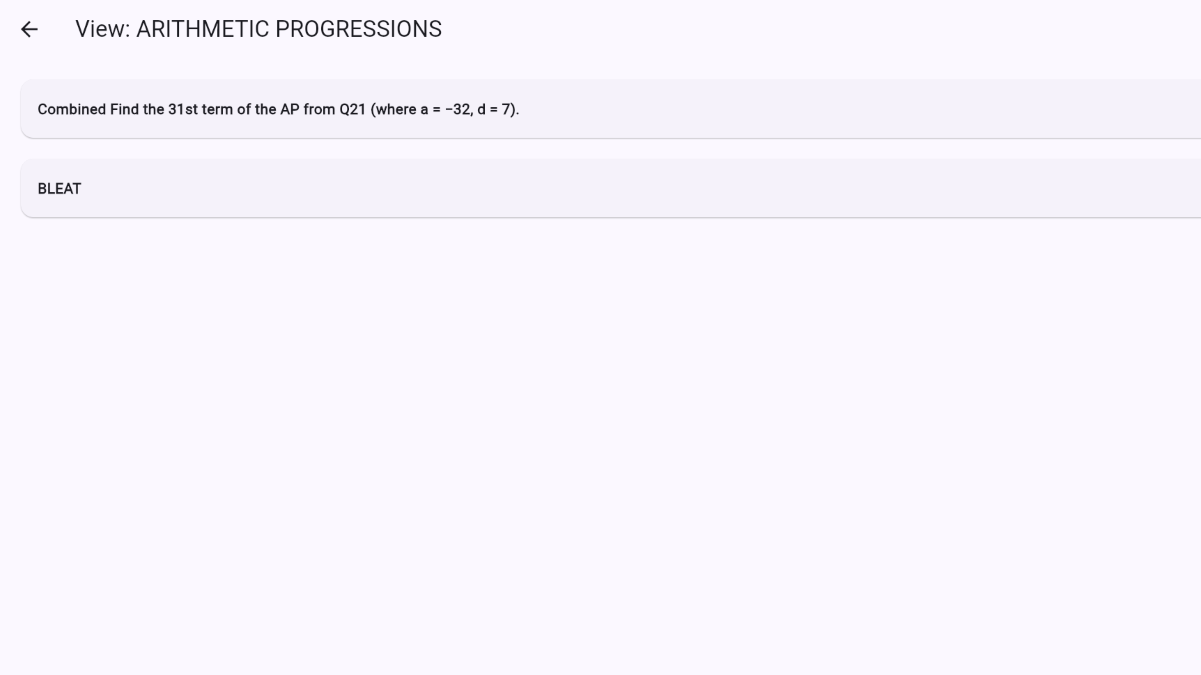
5.2 Viewing multi-step questions
Tap “View my Questions / Steps”, then tap any question to expand it and see every step, with each step's correct option shown in green.
5.3 Deleting multi-step questions
Tap “Delete my Questions”, tick the questions you want to remove, and confirm — the same process described in section 4.6. Deleting a multi-step question also removes all of its steps.
6. Creating an Assignment
An assignment is a named collection of questions that you can send to a student. Tap “Create my Assignments” from the Main Menu.
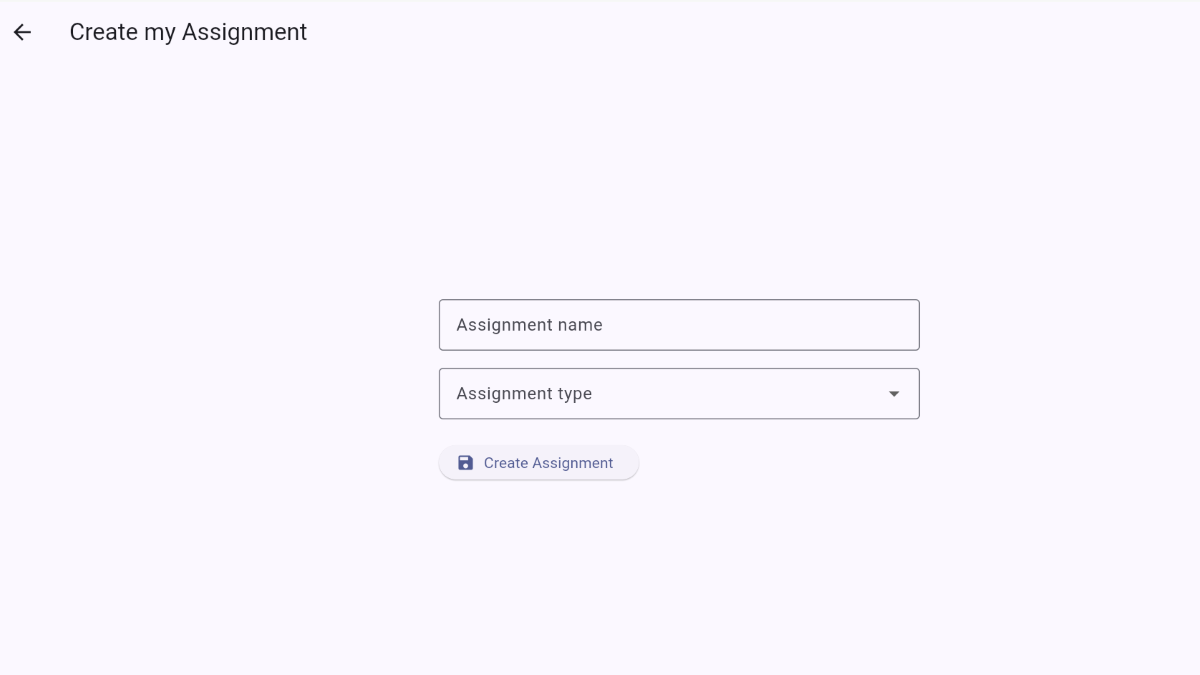
- Type a name for the assignment, for example “Class 10 – Chapter 1 Practice Test”.
- Choose the assignment type: MULTIPLECHOICE (built from your MCQs) or MULTIPLESTEPS (built from your multi-step questions).
- Tap “Create Assignment”.
7. Adding Questions to an Assignment
Creating an assignment gives it a name and type, but it starts out empty. Tap “Add my Questions to my Assignments” to fill it with questions.
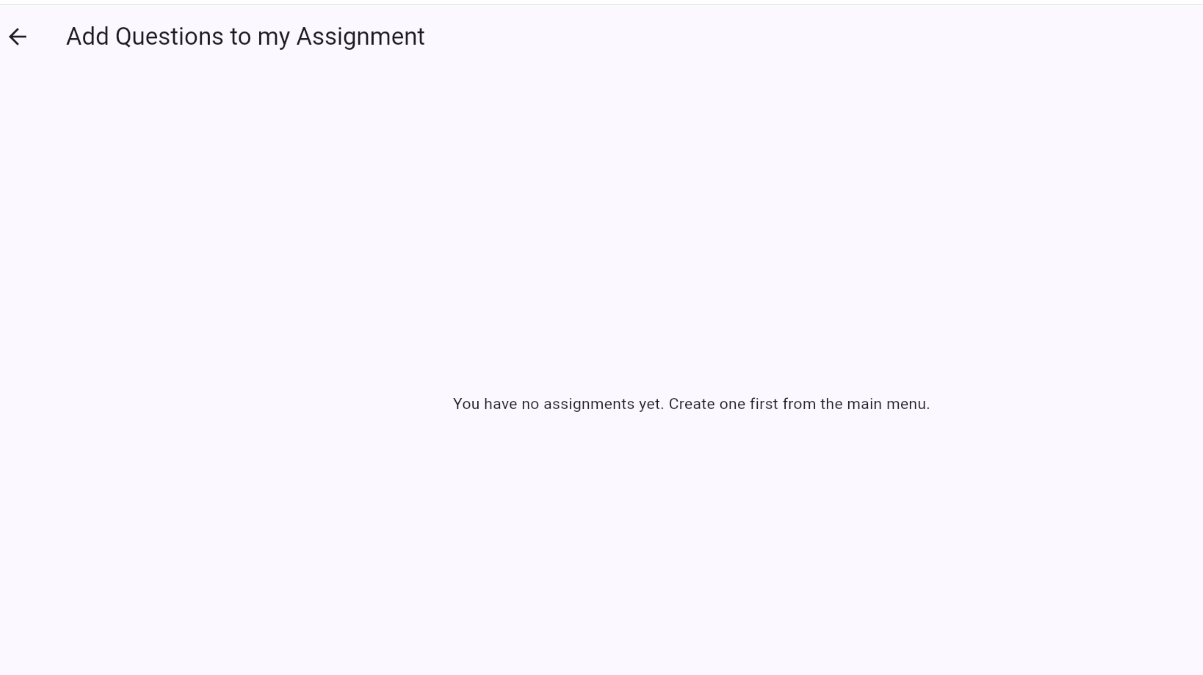
- Tap the assignment you want to add questions to.
- Pick the Board, Class, Subject and Chapter to browse (as in section 4.1).
- Tick each question you want to include. SkillQ automatically shows only the question type that matches the assignment (MCQs or multi-step questions).
- Tap “Add (n) question(s) to Assignment” to save your selection.
8. Allocating an Assignment to a Student
Once an assignment has questions in it, you can send it to a student. Tap “Allocate my Assignments” from the Main Menu.
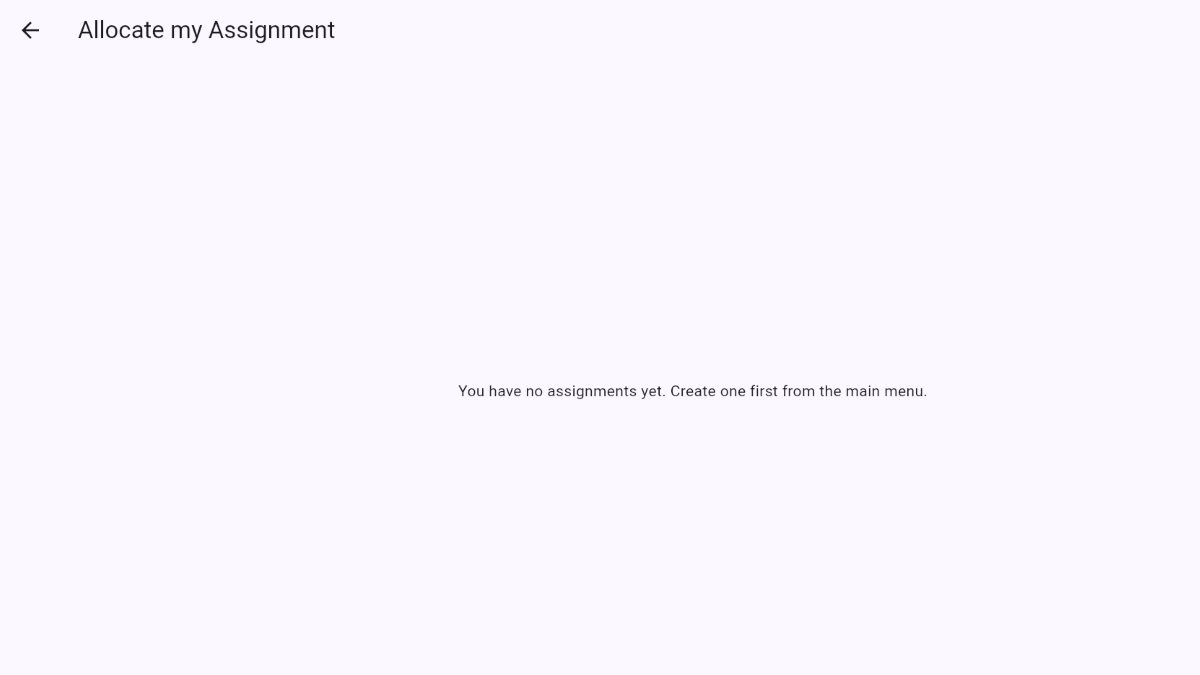
- Choose the assignment from the dropdown list.
- Type the student's email address — this must be the same address they use to sign in to SkillQ.
- Tap “Allocate”.
9. Signing Out
To sign out of SkillQ, go to the Main Menu and tap the logout icon in the top-right corner of the screen. You'll be returned to the sign-in screen.
10. Tips & Frequently Asked Questions
I don't see any Boards, Classes, Subjects or Chapters to choose from
This list is set up centrally and shared by all tutors. If it looks empty, check your internet connection and try again; if the problem continues, contact your SkillQ administrator.
I can't find a question I added earlier
Questions are filed under the exact Board / Class / Subject / Chapter you chose when you added them. Go back through the same picker to find it again.
Can another tutor see my questions?
No. Every question and assignment you create is private to your own account.
What happens if I delete a question that's already in an assignment?
The question is removed permanently. Review your assignments before deleting a question you may have already allocated.
The app shows an error message when loading
Most loading screens have a “Retry” button — tap it once your internet connection is stable. If the error continues, contact your SkillQ administrator.
11. Math Symbols & Keyboard Equivalents
SkillQ questions and answers can include mathematical notation. Because most keyboards don’t have dedicated keys for symbols like √ or π, type the keyboard equivalent shown below and SkillQ will render the correct symbol. Use this page as a quick reference whenever you’re building a question.
sqrt(x) or alpha) must be typed exactly as shown, with no spaces inside the parentheses.11.1 Basic Arithmetic
| Symbol | Keyboard Equivalent |
|---|---|
| + | + |
| - | - |
| × | * |
| ÷ | / |
| = | = |
| ≠ | != or <> |
| ± | +/- |
| ∓ | -/+ |
| % | % |
11.2 Powers and Roots
| Symbol | Keyboard Equivalent |
|---|---|
| x² | x^2 |
| x³ | x^3 |
| xⁿ | x^n |
| √x | sqrt(x) |
| ∛x | cbrt(x) |
| ∜x | x^(1/4) |
| ⁿ√x | root(n,x) or x^(1/n) |
11.3 Fractions
| Symbol | Keyboard Equivalent |
|---|---|
| ½ | 1/2 |
| ¼ | 1/4 |
| ¾ | 3/4 |
| a/b | a/b |
11.4 Comparison
| Symbol | Keyboard Equivalent |
|---|---|
| < | < |
| > | > |
| ≤ | <= |
| ≥ | >= |
| = | = |
| ≠ | != |
| ≈ | ~= or approx |
| ≅ | ~= |
| ∝ | prop |
| ∼ | ~ |
| ≃ | ~= |
| ≈ | approx |
| ≪ | << |
| ≫ | >> |
11.5 Set Theory
| Symbol | Keyboard Equivalent |
|---|---|
| ∈ | in |
| ∉ | !in |
| ∋ | contains |
| ⊂ | subset |
| ⊆ | subseteq |
| ⊄ | !subset |
| ⊈ | !subseteq |
| ⊃ | superset |
| ⊇ | superseteq |
| ∪ | union |
| ∩ | intersect |
| ∅ | empty |
| ℕ | N |
| ℤ | Z |
| ℚ | Q |
| ℝ | R |
| ℂ | C |
| ℙ | P |
| { } | { } |
| × | Cartesian product |
11.6 Logic
| Symbol | Keyboard Equivalent |
|---|---|
| ∧ | and |
| ∨ | or |
| ¬ | not |
| → | -> |
| ← | <- |
| ↔ | <-> |
| ⇒ | => |
| ⇐ | <= |
| ⇔ | <=> |
| ⊕ | xor |
| ⊻ | xor |
| ⊤ | True |
| ⊥ | False |
| ∀ | forall |
| ∃ | exists |
| ∄ | !exists |
11.7 Calculus
| Symbol | Keyboard Equivalent |
|---|---|
| ∫ | int |
| ∬ | iint |
| ∭ | iiint |
| ∮ | oint |
| ∂ | partial |
| d/dx | d/dx |
| dx | dx |
| dy | dy |
| ∇ | grad |
| Δ | Delta |
| ∑ | sum |
| ∏ | prod |
| lim | lim |
| ∞ | inf |
| ε | eps |
11.8 Geometry
| Symbol | Keyboard Equivalent |
|---|---|
| ∠ | angle |
| ∟ | rightangle |
| ⊥ | perp |
| △ | triangle |
| □ | square |
| ○ | circle |
| ° | deg |
| ′ | ' |
| ″ | '' |
| ⌒ | arc |
11.9 Statistics
| Symbol | Keyboard Equivalent |
|---|---|
| x̄ | xbar |
| μ | mu |
| σ | sigma |
| σ² | sigma^2 |
| Σ | Sigma |
| Var | Var |
| Cov | Cov |
| Corr | Corr |
| P(A) | P(A) |
| E(X) | E(X) |
11.10 Linear Algebra
| Symbol | Keyboard Equivalent |
|---|---|
| · | dot |
| × | cross |
| ⊗ | kron |
| ⊕ | directsum |
| Aᵀ | A^T |
| A⁻¹ | A^-1 |
| det(A) | det(A) |
| tr(A) | tr(A) |
| rank(A) | rank(A) |
11.11 Number Theory
| Symbol | Keyboard Equivalent |
|---|---|
| ∣ | divides |
| ∤ | !divides |
| gcd | gcd |
| lcm | lcm |
| mod | mod |
| ≡ | mod |
| prime | prime |
11.12 Greek Letters
| Symbol | Keyboard Equivalent |
|---|---|
| α | alpha |
| β | beta |
| γ | gamma |
| δ | delta |
| ε | epsilon |
| ζ | zeta |
| η | eta |
| θ | theta |
| ι | iota |
| κ | kappa |
| λ | lambda |
| μ | mu |
| ν | nu |
| ξ | xi |
| π | pi |
| ρ | rho |
| σ | sigma |
| τ | tau |
| υ | upsilon |
| φ | phi |
| χ | chi |
| ψ | psi |
| ω | omega |
| Γ | Gamma |
| Δ | Delta |
| Θ | Theta |
| Λ | Lambda |
| Ξ | Xi |
| Π | Pi |
| Σ | Sigma |
| Φ | Phi |
| Ψ | Psi |
| Ω | Omega |
11.13 Programming Equivalents
| Symbol | Keyboard Equivalent |
|---|---|
| Mathematical | Common Keyboard Form |
| x² | x^2 |
| x⁻¹ | x^-1 |
| √x | sqrt(x) |
| eˣ | exp(x) |
| ln(x) | ln(x) |
| log₁₀(x) | log10(x) |
| sin(x) | sin(x) |
| cos(x) | cos(x) |
| tan(x) | tan(x) |
| arcsin | asin(x) |
| arccos | acos(x) |
| arctan | atan(x) |
| ⌊x⌋ | floor(x) |
| ⌈x⌉ | ceil(x) |
| max | max() |
| min | min() |
| factorial | n! |
| choose | C(n,k) or binom(n,k) |